Categories
Raspberry Pi Tutorials

Using Linux to create a Cellular WAN Gateway

Today our home Internet went out. It rarely happens, but when it does it’s typically brief – maybe a couple hours max, and I can hobble along with my Mac connected directly to my phone until it comes back. Today’s outage was a lot longer, though, and after a few hours I really wanted to get the entire house back online so all of my Internet dependent devices could get back to normal.

My hope initially was that my MikroTik router would allow me to connect up my iPhone via USB and bridge the hotspot to the rest of my network, but I couldn’t make that work.

The router identified that the phone was connected, but it wasn’t treating it like a USB Ethernet interface. I could’ve devoted one of its radios to connect wirelessly to the phone, but I really didn’t want to mess with my router’s configuration knowing that this would be a temporary setup.

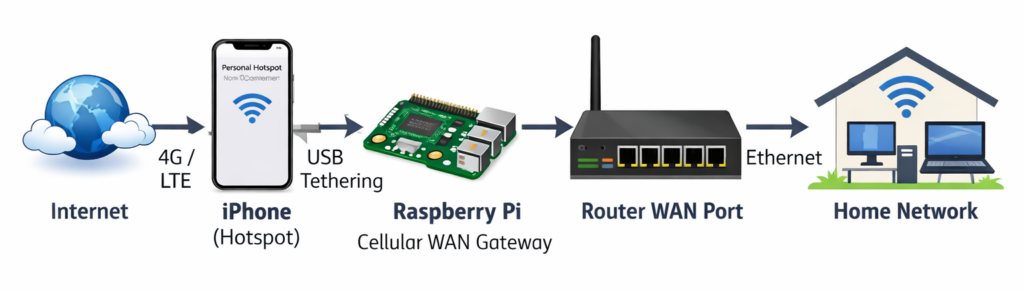
Using Linux to do this (in my case a Raspberry Pi) was super simple. Here’s what I had to do to share the iPhone’s Internet connection with my entire network. Afterwards everything worked as it should – wireless and wired devices could all reach the Internet.
On the phone

Specs: iPhone 15 Pro on AT&T
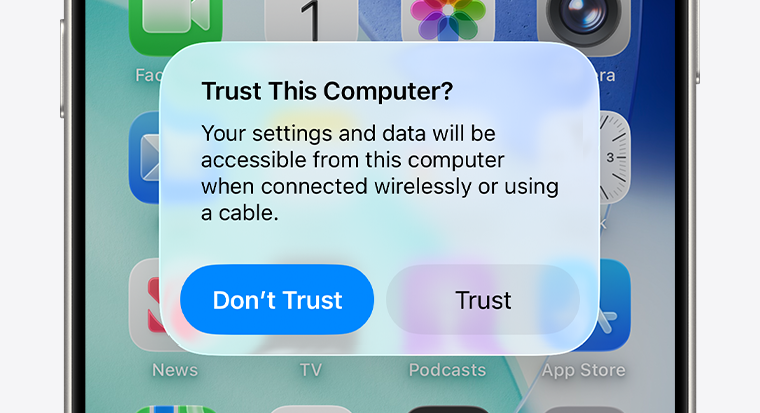
Just make sure Personal Hotspot is enabled (you need a cellular plan that allows tethering), and connect it to a USB port on the Pi. You should get a prompt on both devices to trust the other one. This is likely the same experience if you have an Android device.

On the RPi

Specs: RPi 5 running Bookworm + Gnome

With the iPhone connected, tethering was already working! It showed up as an interface named eth1 and traffic was successfully routed. Kudos to the folks who made this so easy to get going.
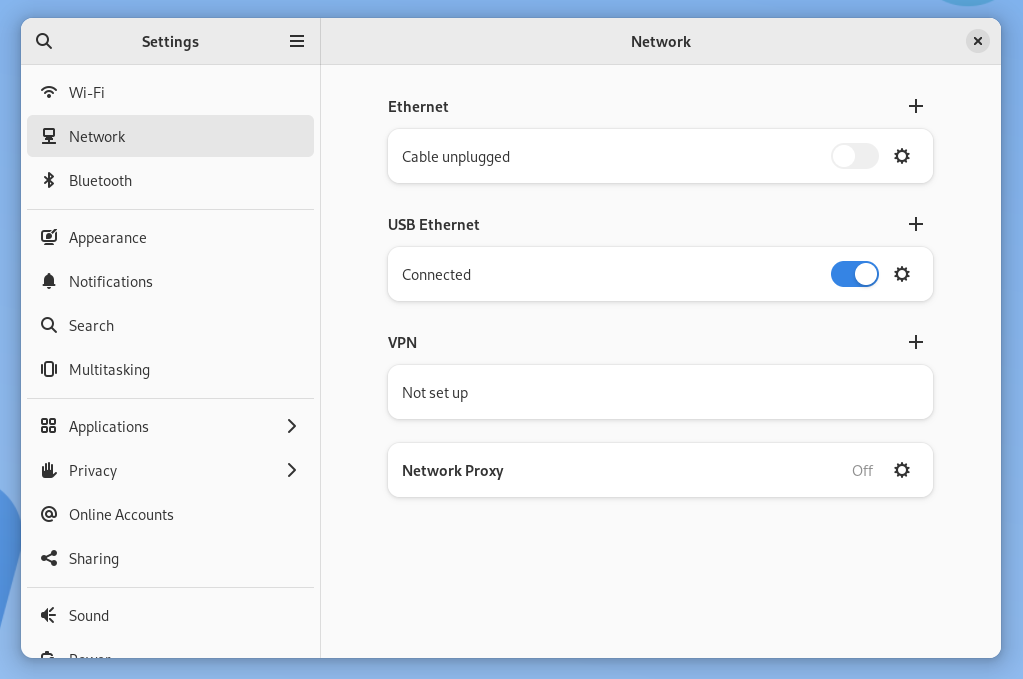
The next step was to turn the RPi into a gateway that we could plug into our router’s WAN Ethernet port.

Here are some assumptions I’ll use for the commands below:

  • eth0 is the Raspberry Pi’s Ethernet interface
  • eth0 will have an IP of 192.168.88.1/24
  • eth0 will serve a DHCP range of 192.168.88.10 - 192.168.88.100
  • eth1 is the iPhone’s USB Ethernet interface

With root permissions we need to do the following:

  1. Enable packet forwarding:
    • sysctl -w net.ipv4.ip_forward=1
  2. Set eth0‘s IP to 192.168.88.1 with a netmask of 255.255.255.0.
    • You can use the GUI for this, or /etc/dhcpcd.conf, or whatever’s best for your distro.
  3. Install dnsmasq:
    • apt install dnsmasq
  4. Configure the DHCP range for eth0 by editing /etc/dnsmasq.conf:
    • interface=eth0
      dhcp-range=192.168.88.10,192.168.88.100,255.255.255.0,24h
  5. Restart dnsmasq:
    • systemctl restart dnsmasq
  6. Set some iptables rules:
    • iptables -t nat -A POSTROUTING -o eth1 -j MASQUERADE
    • iptables -A FORWARD -i eth0 -o eth1 -j ACCEPT
    • iptables -A FORWARD -i eth1 -o eth0 -m state --state RELATED,ESTABLISHED -j ACCEPT
  7. Confirm iptables look good:
    • iptables -t nat -L -n -v

Note: These iptables rules won’t survive a reboot, so you’ll want to commit them if you need that. Also keep in mind you’ll likely want to disable dnsmasq and revert eth0‘s network configuration when things get back to normal.

On the router
If your router is configured to get its WAN IP via DHCP there’s nothing to do here – you just need to make sure that the Raspberry Pi’s Ethernet cable is connected to the appropriate WAN port.

If your router isn’t configured to use DHCP, just give it an IP in the range above, a gateway of 192.168.88.1, and some standard DNS servers like 8.8.8.8 and 8.8.4.4.

That’s it

Everything wired or wireless on the network just works – it doesn’t know (or care) where the WAN connection is coming from. A great solution for those days when you need a failover! 🛜
Categories
Fun Projects Raspberry Pi

64×64 LED Matrix + Doom

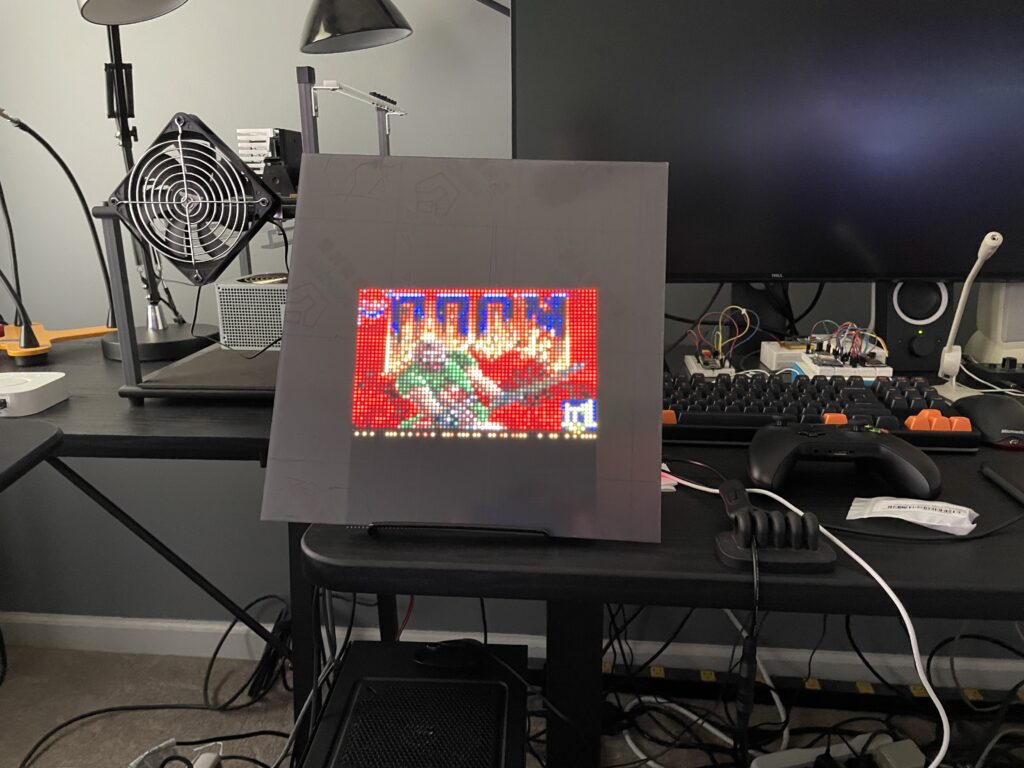
From the weekend hacks department: I now have DOOM running on my 64×64 matrix!

GitHub repo: https://github.com/twstokes/doom-matrix

Categories
Arduino Fun Projects Raspberry Pi

Domo Arigato

If the objective was to make the robot less creepy, I’ve failed miserably.

Categories
Projects Raspberry Pi

Snake Eyes + Servos

Categories
Raspberry Pi

Booting the Raspberry Pi from an SSD

It’s been possible to boot a Raspberry Pi from an SSD for a while now, but the process didn’t seem to have the full blessing from the Raspberry Pi Foundation. This changed recently when they announced their beta firmware to officially support it.

It was pretty painless to get it working, so here’s how I did it. Some notes up front:

  1. Based on research of past success stories, I went with this adapter – the ELUTENG SATA to USB 3.
    ⚠️ Beware! I’m seeing in Amazon reviews that this adapter may have moved to a non-compatible chip! Here’s a great resource for compatible adapters.
  2. I used a Raspberry Pi 4 4GB
  3. The SSD I used was a spare Samsung EVO 250GB I had from a retired machine
  4. I connected the SSD directly to the USB 3 port
  5. I went with the headless version of Raspberry Pi OS (formerly known as Raspbian), but this should work with any of them
  6. Since my RPi was already running off an SD card I wanted to be able to plug in the USB drive and do this all from my couch. I only had to get up once, and that was to take out the SD card on the final reboot!

Steps

Most of these instructions all came from here.

Don’t blindly follow these instructions unless this post is only a few days old! Things are bound to change – this is beta software. Do it at your own risk. If a step has something in [brackets], you need to figure out your particular value.

  1. sudo apt update
  2. sudo apt full-upgrade
  3. sudo vim /etc/default/rpi-eeprom-update
    1. Change to: FIRMWARE_RELEASE_STATUS="beta"
  4. sudo rpi-eeprom-update -d -f /lib/firmware/raspberrypi/bootloader/beta/pieeprom-2020-05-15.bin
  5. On the RPi, download the Raspberry Pi OS image and copy it to the SSD. Make sure the SSD isn’t mounted!
    1. wget https://downloads.raspberrypi.org/raspios_lite_armhf_latest
    2. shasum -a 256 raspios_lite_armhf_latest (verify the SHA)
    3. unzip raspios_lite_armhf_latest
    4. sudo dd bs=4M if=2020-05-27-raspios-buster-lite-armhf.img of=/dev/[SSD DEV NAME] conv=fsync
  6. sudo rpi-update
  7. Reboot, and hopefully the SSD will automount. The RPi isn’t expected to boot from it yet, but should treat it like an external drive.
  8. sudo cp /boot/*.elf /media/[SSD mount]/boot
  9. sudo cp /boot/*.dat /media/[SSD mount]/boot
  10. Because I went with the headless install, I wanted to be able to SSH into it
    1. sudo touch /media/[SSD mount]/boot/ssh
  11. Power off the RPi
  12. Remove the SD card
  13. Power up
  14. Hopefully you’re booting off the SSD!

Performance

SD Reads: 42MB/sec
SD Writes: 22 MB/sec

SSD Reads: 314 MB/sec (7.4x)
SSD Writes: 212 MB/sec (9.6x)

Categories
Commodore 64 Projects Raspberry Pi

Pi 1541 – it works!

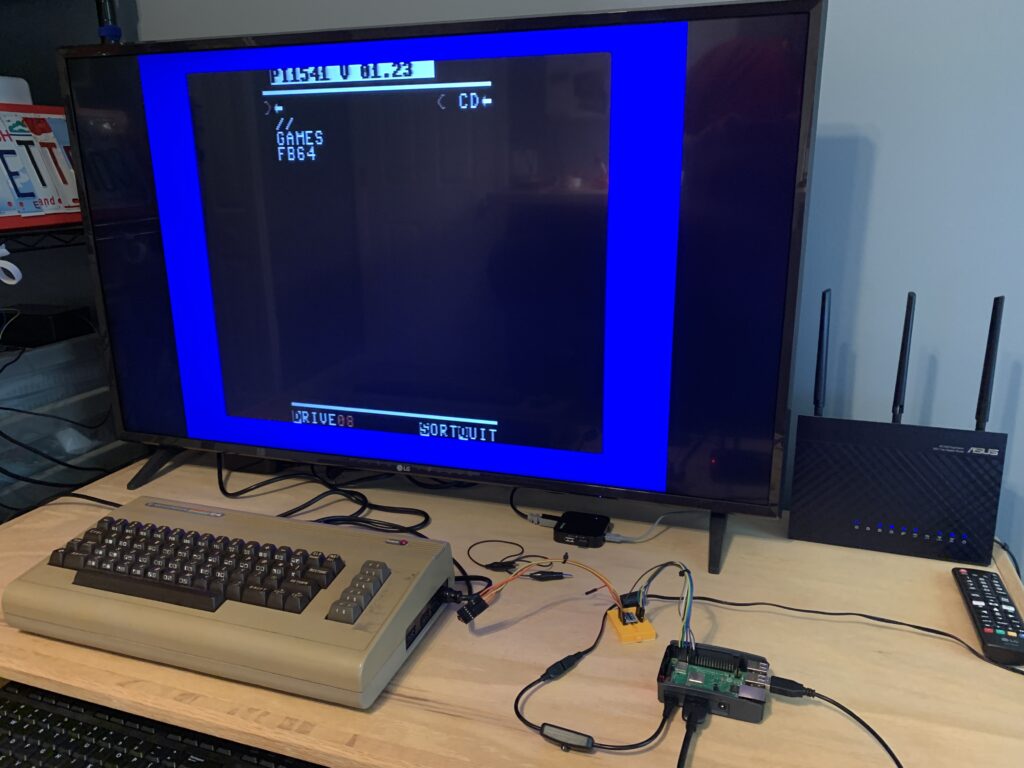
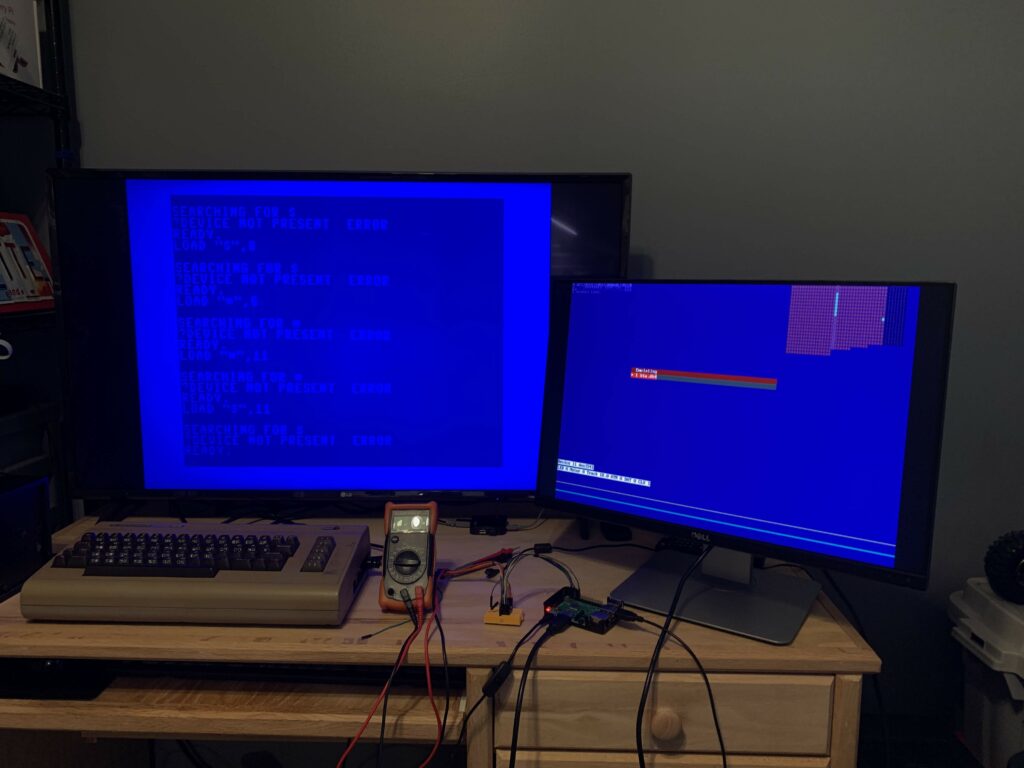
After some initial struggles, we’re good to go!

Categories
Commodore 64 Projects Raspberry Pi

Pi1541

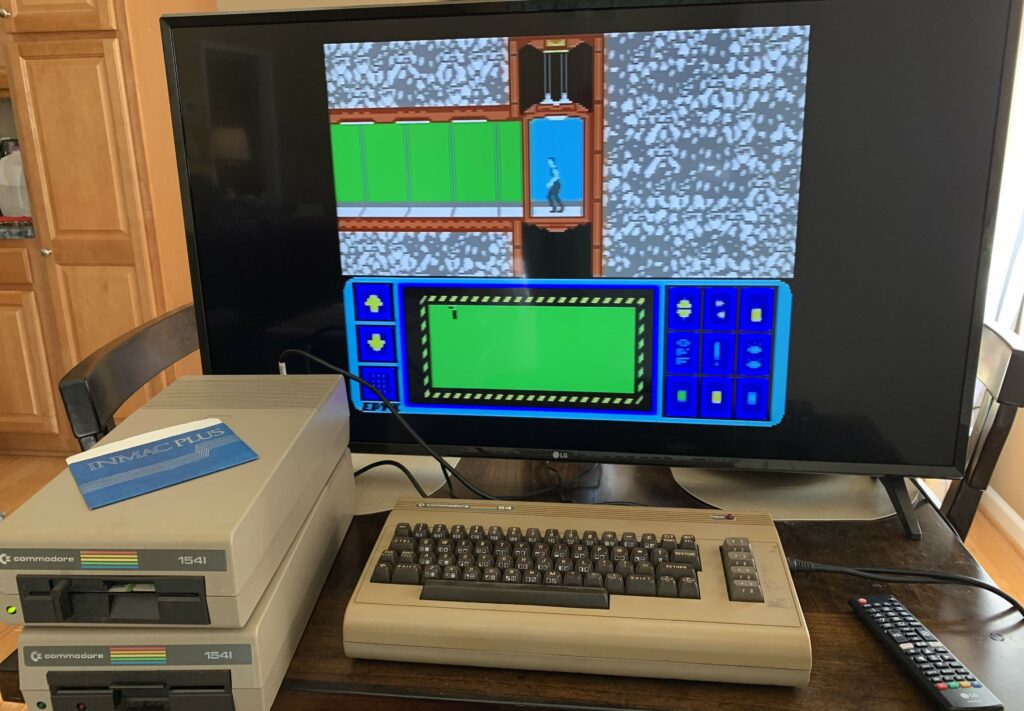
The Commodore 64 in all its glory!

After the fun and nostalgic experience of pulling our C64s out of storage, I wondered how someone could add new software in this day and age. It didn’t take me long to find Pi1541, which is:

a real-time, cycle exact, Commodore 1541 disk drive emulator that can run on a Raspberry Pi 3B, 3B+ or 3A+

https://cbm-pi1541.firebaseapp.com/

All I needed to do was provide an RPi 3, load some stuff to an SD card, make a cable, and I would magically have an emulated 1541!

Making a cable

I bought a high quality DIN 6 pin cable, some Dupont headers, and a crimping tool from Amazon to get it built. This guide (also linked from the Pi1541 page) set me on the right track.

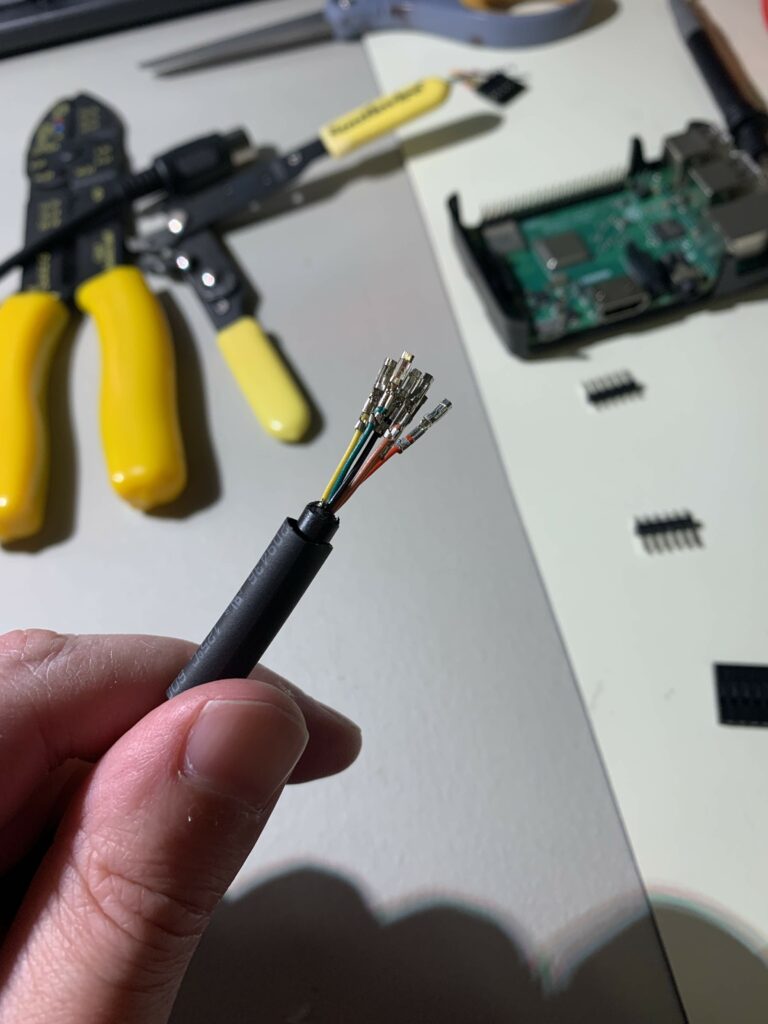
Crimped and ready to go. This was only my THIRD time cutting them all off and starting over.
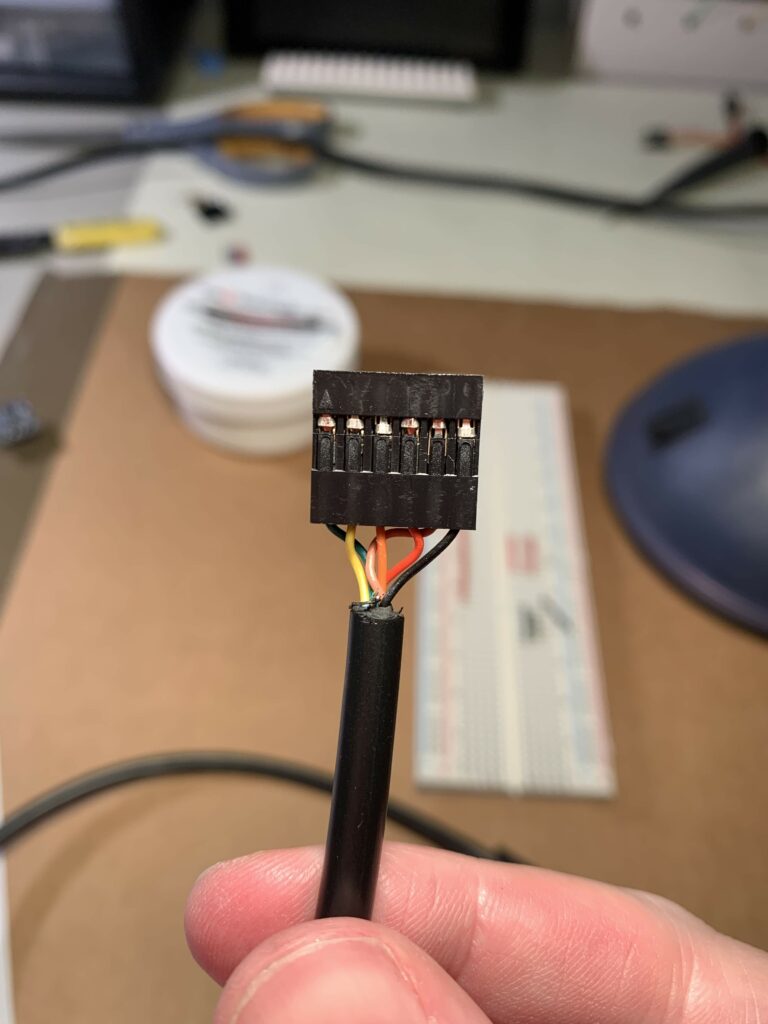
Header attached. I chose to order the cables by pin order – 1 through 6.
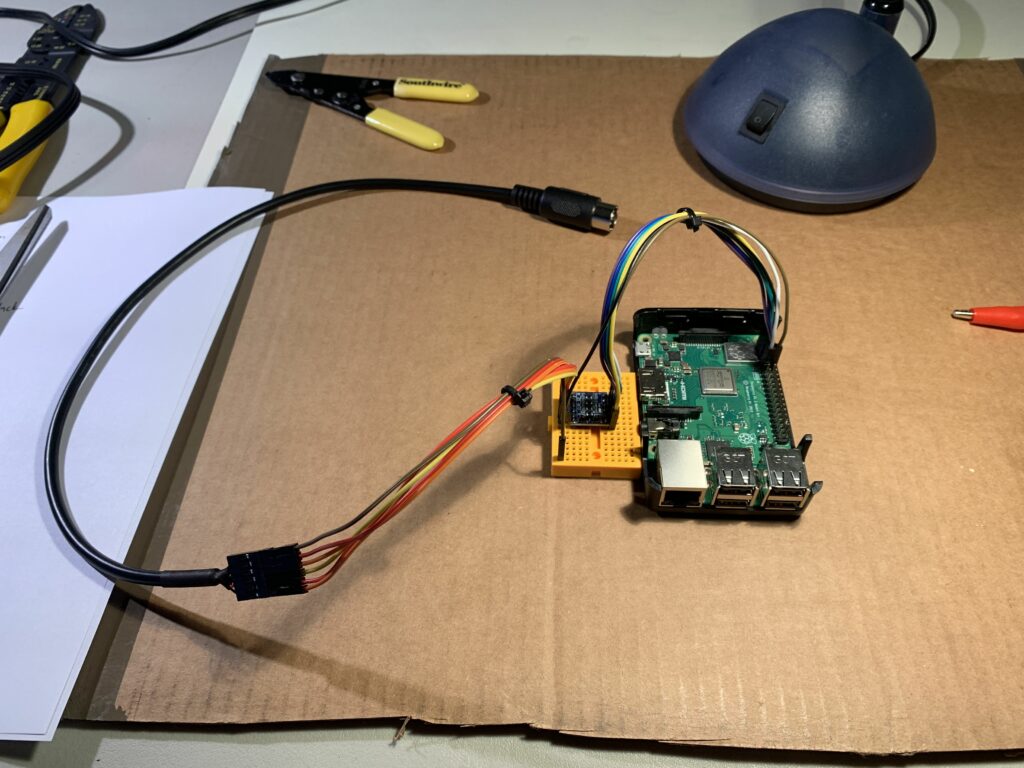
Assembled, wired up, and ready to go… so I thought.

The process to construct the cable was straightforward after teaching myself how in the world one crimps these tiny Dupont connectors. The trick is to line up and fasten the wire with some needle-nose pliers first, then carefully insert the connector in your crimp tool so you don’t destroy the “box end” where the male connector is received.

Connecting things up

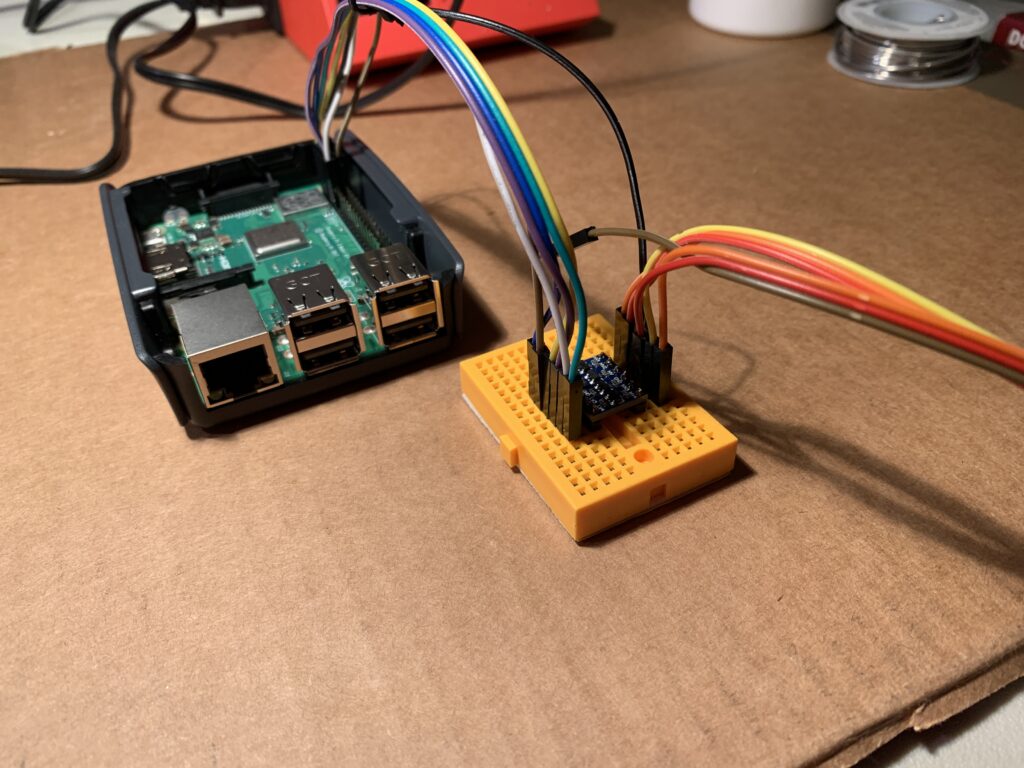
I followed the “Option A” on the Pi1541 site for wiring since I wouldn’t be including any other peripherals. An important piece of this schematic is the bi-directional logic level converter. The RPi speaks 3.3V logic while the C64 speaks 5V.

I loaded up the SD card, connected everything, fired up the C64, and plugged in the RPi. Everything worked perfectly, right? Nope.

Trouble

At first the RPi didn’t boot at all – I had just a solid red light, so it was time to troubleshoot:

  • Did I fry something on the Pi?
  • Was the SD card bad?
  • Did I load the software incorrectly to the card?

Good news: The Pi wasn’t dead. I confirmed this by booting from a spare SD card that had Raspbian loaded to it. Whew.

I then found the Pi would boot with the Pi1541 firmware, but only if the cables on the header pins were disconnected.

The culprit: The cheapo “bi-directional logic converter” I had lying around didn’t work at all like I assumed it did. Instead of supplying 3.3V and 5V to it (like it properly should), it only wants 5V. Turns out I was sending 3.3V to an output. Ouch.

Now we had a booting Pi with everything connected up, but still no disk drive:

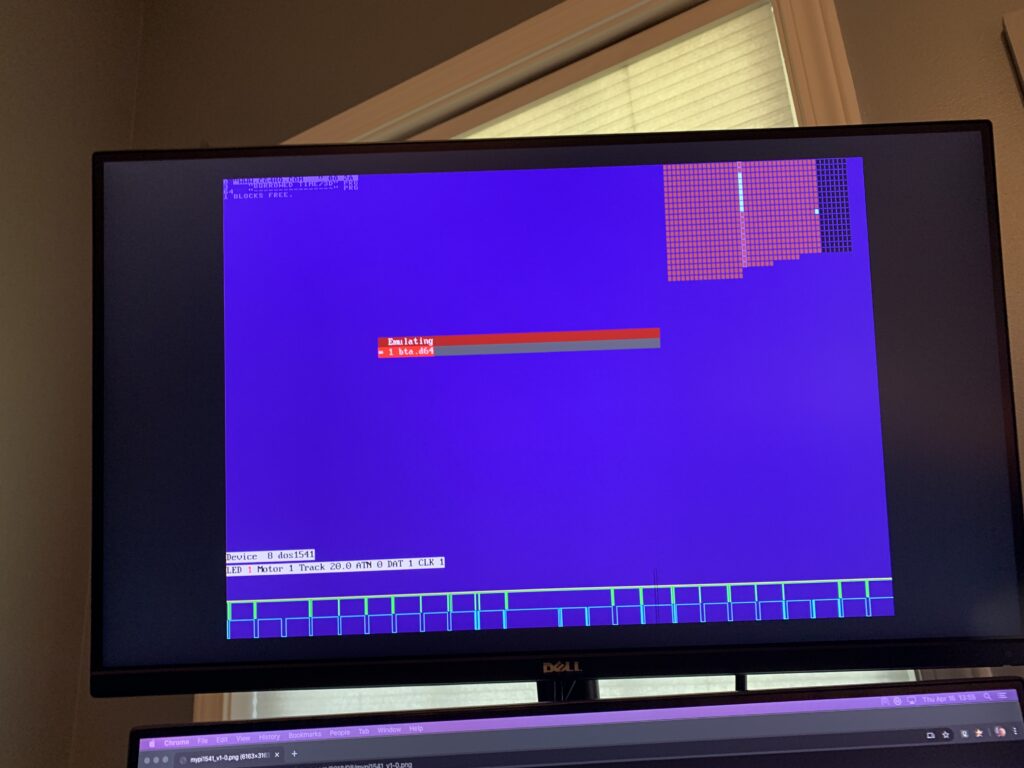
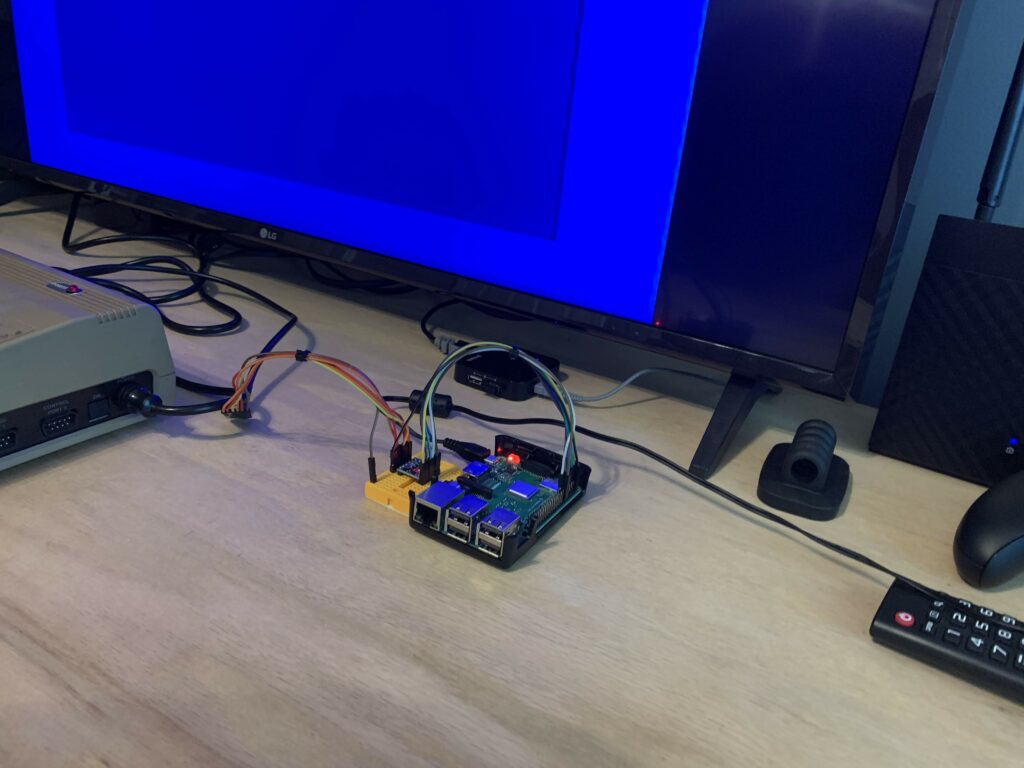
The emulated device can’t be found by the C64.

Now we wait

After much troubleshooting I’ve come to the conclusion that I’ll just need to use a proper logic level shifter before proceeding. I’ve ordered some of these and will have to wait patiently as their expected arrival is the end of the month…

Categories
Arduino Coding Golang Raspberry Pi

A Tree Divided

See the GitHub Repo!

The tree reacting to Clemson scoring

Idea

Every year Clemson plays USC for their state rivalry game. I pull for Clemson and my wife pulls for USC, so we’re what you call a “House Divided”. Since this game takes place on or after Thanksgiving, it’s a great time to incorporate the LED Christmas tree and troll my spouse!

The tree works like this:

  • When a team scores, it plays their fight song and lights up with their primary and secondary colors.
  • The lights on the tree are distributed by the ratio of points. When it’s tied, they each get 50% of the lights. If Team A has 2/3 more points, they get 2/3 more lights in their color.
  • The ring under the star at the top of the tree is the color of winning team. If they’re tied, it’s split.
  • When the game is finished, the tree is the color of the team that won.

Software

I used Golang for the software since I primarily write code in another language and want to get better at it. It makes use of various interfaces to aid in testing and abstration:

  • The Fetcher interface gets the latest game state from a data source
  • The Player interface plays audio at the given path
  • The Illuminator interface controls a light source (in this case the LED tree)

The source code for a local data fetcher is included in this repo only. The remote fetcher I built may or may not have used an API meant for this sort of consumption. It simply fetched from a remote data source, unmarshalled a JSON data structure, and supplied what the Fetcher interface needed.

The code runs on a Raspberry Pi and communicates with the MCU via serial. An iHome IBT63 speaker is used to play audio from the Raspberry Pi. I didn’t use the Bluetooth connection and instead used the shared power and audio connector, plugging one end into the RPi’s stereo jack and the other into the USB port.

I cross-compiled from my Mac using the rpi.sh script in the executable’s directory.

Firmware

  • Uploaded using PlatformIO
  • Runs on a NodeMCU ESP8266
Categories
Raspberry Pi

A good Raspberry Pi 4 case

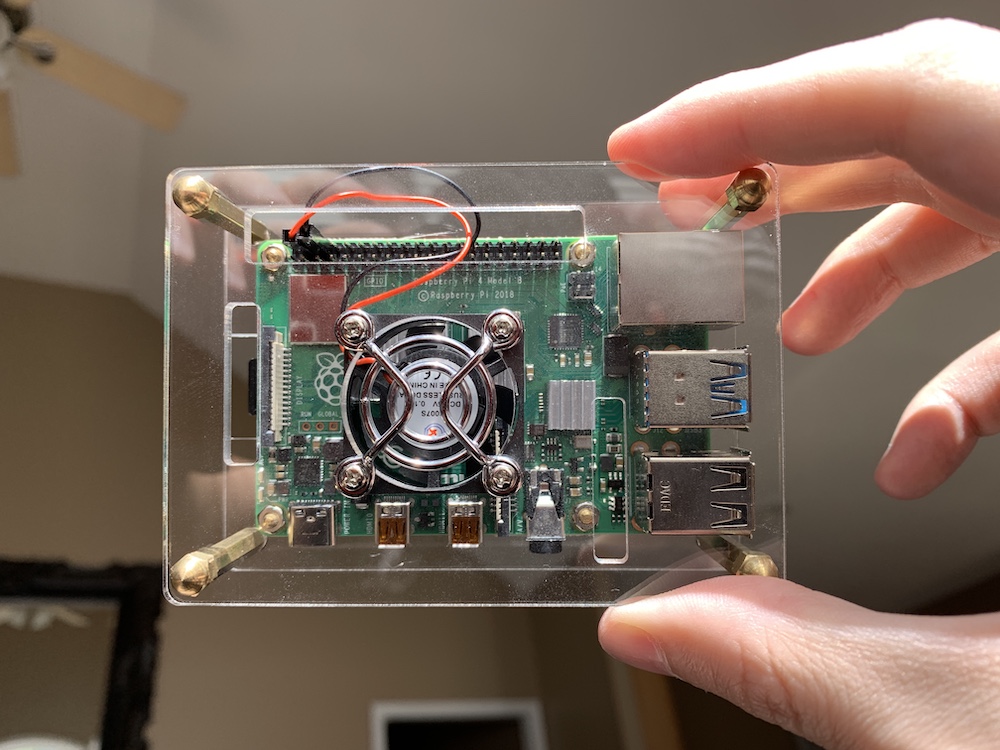
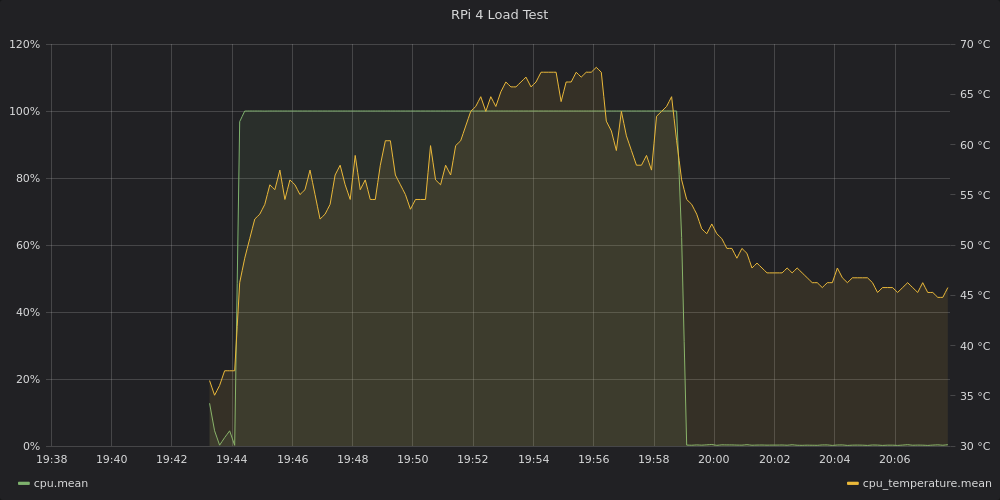
My excitement for the new Raspberry Pi 4 turned into disappointment upon learning it couldn’t handle sustained loads without some sort of extra cooling solution. After installing it in this case, I’m happy to say things are looking stable.

The case comes with a fan and three heat sinks
Results of the load test
Categories
Projects Raspberry Pi

The Rover has dual steering!